

















Setting guarantees in bulk
Most catalogues do not need a guarantee typed on every product. A brand rule covers a whole brand, a product feature reuses the data you already keep, and Assign guarantees sets many products at once. This chapter explains the three and how they work together.
Which source wins
For each product, the module takes the guarantee of the first source that has one:
- Product setting — A custom guarantee or No label, set on the product page or with Assign guarantees.
- Product feature — The value of the guarantee feature, for example “3 years”.
- Brand rule — The guarantee of the product’s brand.
None — No GARAN label and no mention.
More than 2 years gives the GARAN label. A guarantee of 2 years or less gives a plain mention while short guarantees are allowed, and nothing otherwise (Short producer guarantees). Some examples:
| Product setting | Feature value | Brand rule | Result |
|---|---|---|---|
| Custom 10 years | 3 years | 5 years | GARAN label 10 years |
| No label | 3 years | 5 years | Nothing |
| Inherit | 3 years | 5 years | GARAN label 3 years |
| Inherit | none | 5 years | GARAN label 5 years |
| Inherit | 6 months | 5 years | Mention 6 months, or nothing while short guarantees are off |
| Inherit | none | none | Nothing |
Brand rules: one guarantee per brand
Use a brand rule when a producer gives the same guarantee on all its products, for example “every product of this brand: 5 years”. Set it in GARAN label › Brand rules (GARAN label › Brand rules). Products that differ can still get their own setting or a feature value, which wins over the rule.
A product feature as the source
Many shops already keep the guarantee as a product feature, for example “Guarantee: 3 years”, shown in the product’s data sheet. The module can read it, so you maintain the guarantee in one place only.
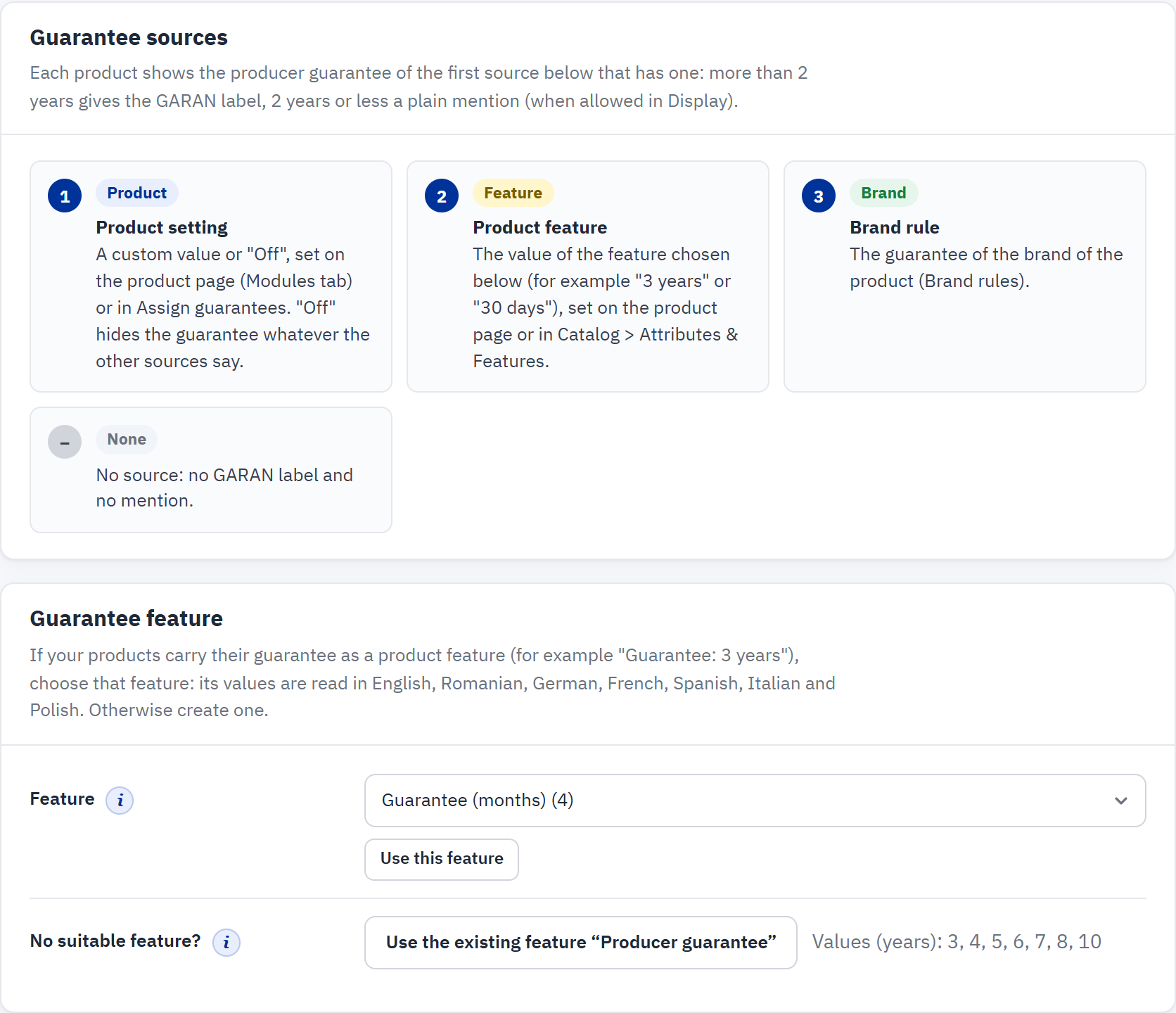
- The order in which the sources are used.
- Feature: the product feature that holds the guarantee. The number in brackets counts its values.
- Use this feature makes the chosen feature the source.
- Create feature “Producer guarantee” creates a ready-made feature; when it already exists, the button reads Use the existing feature “Producer guarantee”, as here.
Use a feature you already have
- Open GARAN label › Guarantee sources.
- In Feature, choose your guarantee feature and click Use this feature.
- Check the table Values of «…» that appears: every value with how the module reads it (next section). Correct what is wrong and click Save mapping.
Create a feature
- Click Create feature “Producer guarantee”. The module creates the feature in every shop language (for example “Garantie du producteur”, “Herstellergarantie”) with the values 3, 4, 5, 6, 7, 8 and 10 years, and uses it at once.
- Open each product in Catalog › Products and choose its value in the product’s features (the Details tab of the product page of PrestaShop 8 and 9, Basic settings on PrestaShop 1.7.8 and on the older product page of PrestaShop 8), then save the product.
If such a feature already exists, the button reads Use the existing feature “…”: it reuses that feature and adds only the values that are missing. Creating a feature needs the permission to add features (Staff permissions).
To stop using a feature, choose No feature (product settings and brand rules only) and click Use this feature. Your corrections of the values are kept for later.
How feature values are read
The module reads each value as a number and a unit, in English, Romanian, German, French, Spanish, Italian and Polish, with or without accents: “3 ani”, “5 years”, “2,5”, “30 zile”, “6 luni”, “12 Monate”, “2 lata”, “3 años de garantía”… Words such as “guarantee”, “garanție” or “de” around the number do not matter.
| Feature value | Feature name | Read as | Result |
|---|---|---|---|
| 3 ani | any | 3 years | GARAN label |
| 5 years | any | 5 years | GARAN label |
| 2,5 | “Guarantee” | 2,5 years (a number from 1 to 10 without a unit is years) | GARAN label |
| 36 luni | any | 36 months = 3 years | GARAN label |
| 30 zile | any | 30 days | Short mention |
| 12 Monate | any | 12 months | Short mention |
| 24 | “Garanție (luni)” | 24 months: the name says “luni” (months) | Short mention |
| 36 | “Warranty (months)” | 36 months = 3 years | GARAN label |
| 24 | “Guarantee” | Not understood: a large number without a unit | No guarantee |
| 2 ani / 24 luni | any | Not understood: two numbers | No guarantee |
| 3-5 years | any | Not understood: a range | No guarantee |
- Numbers without a unit. A bare number such as “24” takes the unit that the name of the feature states, in any of its languages: “Garanție (luni)”, “Warranty (months)” or “Garantie Monate” make it months; days and years work the same way. When the name states no unit, only 1 to 10 are read as years, because “12”, “24” or “36” are far more often months than years. Larger numbers stay “not understood” until you map them, or add the unit to the feature name.
- Months and days that make whole or half years count as years: 36 months is a 3-year GARAN label, 30 months a 2,5-year one.
- Which language is read. The module reads the value in the default language of your shop.
- Values typed on a product page (custom values of the feature) are read the same way. Only those that are not understood are listed in the table, so you can map them.
Check and correct the values
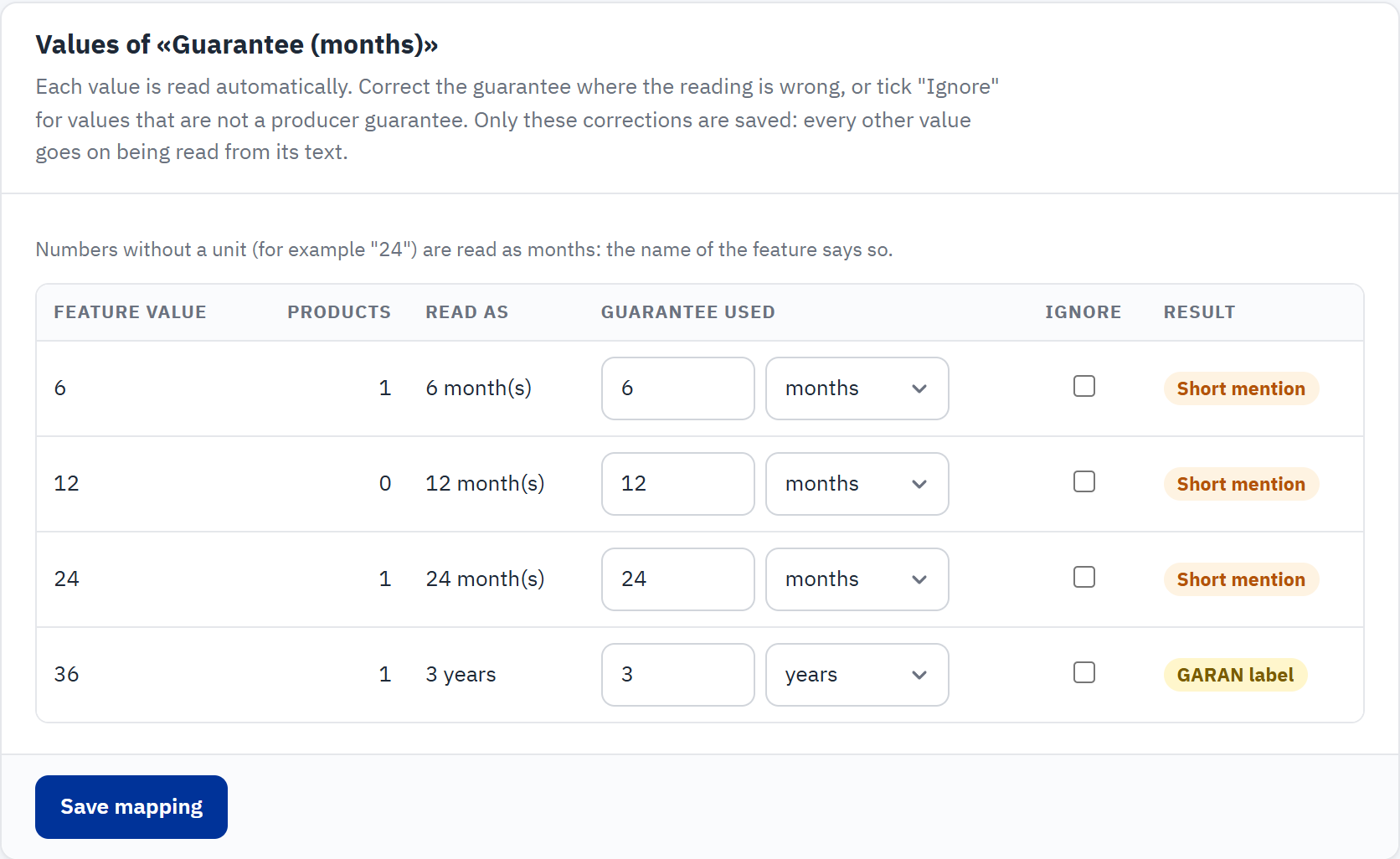
- Feature value: the text of the value; a value typed on a product page is marked.
- Products: how many products use it.
- Read as: what the module understood.
- Guarantee used: the number and unit applied. Change them to correct the reading.
- Ignore: tick it for a value that is not a producer guarantee.
- Result: GARAN label, Short mention, Ignored, or Not understood: no guarantee.
- Save mapping stores your corrections.
- Look for Not understood: no guarantee in the Result column. Enter the right number and unit in Guarantee used, or tick Ignore.
- Check the other rows: correct any reading that does not match what the producer offers.
- Click Save mapping.
Only your corrections are stored: a ticked Ignore box and a guarantee that differs from the reading. Every other value goes on being read from its text, so renaming “3 ani” to “5 ani” in Catalog › Attributes & Features changes the guarantee of its products at once.
Assign guarantees: many products at once
This screen gives a guarantee to many products in one go. It saves it as their product setting, which wins over the feature value and the brand rule. Open it with GARAN label › Assign guarantees, or with the Assign guarantees button at the top of the settings page.
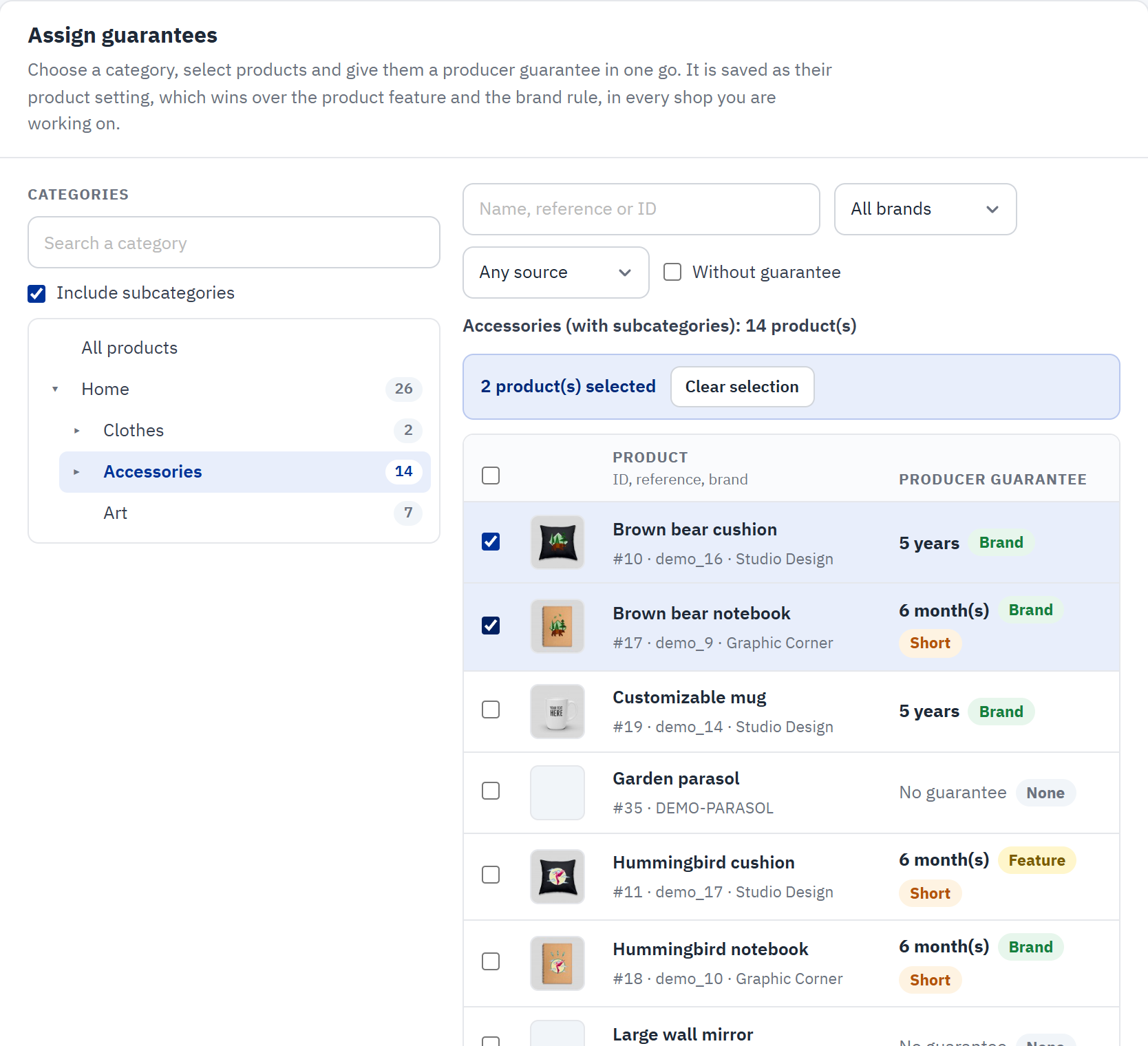
- Search a category filters the category tree.
- Include subcategories: list the products of the subcategories too.
- The category tree, with the number of products in each category. Click a category to list its products.
- Filters: name, reference or ID; brand; guarantee source.
- Without guarantee lists only products that have none yet.
- The selection, with Select all N matching products and Clear selection.
- Tick the box in the header to select every product of the page.
- Each product’s current guarantee and its source: Product Feature Brand None, plus Short for 2 years or less.

- How many products are selected.
- Producer guarantee: the value (and its unit while short guarantees are allowed).
- Apply to selected gives the selected products this guarantee.
- Set Off: the selected products show no label and no mention.
- Reset to inherit: the products follow their feature value or brand rule again.
- Click a category in the tree (or All products). Use the filters to narrow the list, for example a brand and Without guarantee.
- Tick the products. To select every product of the filters, tick the header box, then click Select all N matching products.
- In the bar at the bottom, enter the Producer guarantee, for example
5(years). - Click Apply to selected and confirm. The message that follows lists any product that could not be saved.
- Apply to selected keeps any brand and model texts the products already have on their GARAN card.
- Set Off is the bulk version of No label.
- Reset to inherit removes the product setting, including brand and model texts set on the product’s card, so the feature value or brand rule decides again.
- The list shows 50 products per page. A product with a GARAN duration but no brand is reported after the action: the label needs a producer name.
Check the result
Open GARAN label › Labelled products (GARAN label › Labelled products): every product with its guarantee and source. Then open a product page and a category page of your shop to see the labels.